Scott Kurtz and PvP

Scott Kurtz is a douche, and his webcomic sucks.

This post brought to you by this post.

(And yes, I do think I’m clever. So there.)

Generative Art: Google Logo

I’ve been impressed with what the Processing community does with generative art, and Actionscript seems to be at a point where it can be used much like Processing. In that vein, I’ve been watching Mark Knol’s generative art for a while, and while I wanted to do something like it, I’ve never actually bothered to create sit down and start coding it up.

Today, I tried to recreate his work on the Google logo. While mine doesn’t seem to have as much depth or chaos, I think it turned out fairly well. With some tweaking, I could improve it, but for now I just wanted to put something out there.

Hope you like it!

Great Googly Moogly!

Great Googly Moogly!

Ferris Bueller House For Sale

Was this taken before, or was it rebuilt?

Was this taken before, or was it rebuilt?


http://www.realtor.com/realestateandhomes-detail/370-Beech-Street_Highland-Park_IL_60035_1109385563?%20mp=1#Request

Here is Cameron’s house from Ferris Bueller’s day off for sale. It does not, however, appear to feature broken-out garage and trashed Ferrari.

Last Day Dream

This amazing short film was produced exclusively for the film festival 42 Second Dream in China. This clip shows the memorable moments in the life of a man.

The film event is sponsored by 42 Vodka (never heard of it), who commissioned 42 filmmakers to create 42-second films.

Last Day Dream [HD] from Chris Milk on Vimeo.

via Fubiz

FlashDevelop Cuddly Braces

I was unable to find this anywhere online, and it’s probably horribly obvious to some, but not to me, apparently.

To get your curly braces to cuddle in FlashDevelop (as of 3.0 RC2, anyway), look in Tools > Program Settings, under Main > FlashDevelop, look under the Indenting section. It’s the Coding Style Type “BracesOnLine”

MySQL - Convert Enum to Int

I’m porting a PHP/MySQL app to Microsoft SQL Server 2005 (and yes, it really sucks and is a decision I do not endorse), and have two columns using enum fields. Since Microsoft doesn’t (as far as I know provide a simple way around this (SSIS chokes on the column), I used MySQL’s CONVERT() function to change it to an unsigned integer on query:

SELECT CONVERT(enum_field_name, UNSIGNED) AS new_int_field_name FROM table_name

April Fool

Today, this is the front page of the pixelbath site:

april-fool-buydomain

Python 3.0: Fix urllib Weirdness

If you’ve recently upgraded to Python 3.0 (”Py3k”) and are having some strange issues with urllib.request, fret not. In my case, I am using a script to pull PNG images from a certain webcomics listing site, and once I upgraded my script to work with Python 3.0, left it to its own devices.

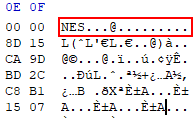
When I went to check on the images, however, not a single one would open. Thinking that the server must have returned text instead of an image, I opened one in UltraEdit to look at the raw data. I saw the PNG header, but it was prepended with several bytes of what us programmers refer to scientifically as “crap.”

After making sure I wasn’t prepending anything weird in the script, I opened Ethereal to get an idea of what was going both up and down the wire when the script fired, and found the same crap in the HTTP response, in a header chunk. This led me to believe Python could not handle chunked content. It’s a requirement for HTTP/1.1, so is a bit surprising that the latest-and-greatest from the Python group can’t handle it.

After a bit of Google-fu, I found this issue, which led me to this now-closed issue containing a couple patches and commits. Going with Antoine’s recommendation, and because I’m lazy and also don’t want to wait for the next release, I decided to just downgrade Python to use HTTP/1.0.

Change the line:

_http_vsn_str = ‘HTTP/1.1′

to

_http_vsn_str = ‘HTTP/1.0′

Mine was found at line 603, but yours may vary depending on when you downloaded Python 3.0. After downgrading to HTTP/1.0, everything works great, and I get valid images.

Block Windows Live Messenger Ads

All your ads are belong to us

All your ads are belong to us

Earlier, we learned how to block ads at the OS level. Blocking ads through the browser is awesome, but advertising these days is all about making inroads to the desktop. Even though Microsoft claims that their business is software, Live Messenger seems to be an ad vehicle. I quickly became tired of video ads constantly showing up in Live Messenger (especially those insipid Tru dating site ads) that would play as soon as the cursor went over them, so I resolved to do something about it. I fired up Fiddler, a proxy that allows you to view HTTP traffic. I saw several random requests for rad.msn.com, and upon further examination saw that it was serving ad content, which depending on the content type, would be handled appropriately by Live Messenger’s ad box.

I added rad.msn.com to my hosts file, and the ads were now blocked. Since there was now a blank box, I decided to go a step further and replace the image. I tried this before with a program that patched the ad out of the executable, but this isn’t a long-term solution, since any software update will require waiting on a new version of the patcher, and a subsequent re-patching. If I just serve a different image up, it’s fairly future-proof because Messenger is one the wiser. No matter what subdirectory or file is being requested by Messenger, this script will always throw back the custom image.

Using the index.php file we ended up with on our last ad-blocking adventure, we will add the following before the html is sent to the browser:

// if it’s live messenger, spit out an image and exit
if ($host == ‘rad.msn.com’) {
$filename = ‘false-ad.jpg’;
if (file_exists($filename)) {
$handle = fopen($filename, “r”);
$contents = fread($handle, filesize($filename));
header(“Content-type: image/jpeg”);
echo $contents;
}
exit();
}

The exit() is added so we can bail out early after serving my custom image, and not serve up the normal adblock page (that I see in my browsers). The image size for the Live Messenger ad is 231×60 pixels.

I opted for an image that would blend in with the skin I use for Live Messenger, but wasn’t just a “blank space here” image. The skin shown is Oil Slick for Messenger Plus! Live.

Host-Based Ad Blocking

To block ads on the web, we need to catch requests to a particular ad server and send them to our local server. We do this by adding an entry to the hosts file. The hosts file on a computer system gives the system information about where to find a computer on the network by mapping hostnames to IP addresses. For our purposes, we will be taking advantage of this by routing requests to ad servers from webpages to our personal system.

These steps will require that you have Apache HTTP server (or IIS with ISAPI_rewrite, something that can rewrite URLs) running on your local machine (or on a system with low latency, possibly on your network).

First, we will need to edit the hosts file, and add an entry in the form “127.0.0.1 ad.example.com.” If you are running Windows, examples should already be present in the hosts file. On Windows systems, this file can be found in %WINDOWS%\system32\drivers\etc\hosts, on Linux systems in /etc/hosts, and in OSX 10.2 and later in /private/etc/hosts.

So how do we get the hostname of an ad server? We can do this several ways, but you have to work for it just a little bit (I know, AdBlock makes it so easy). Since I am a web developer, I usually have the Firebug extension running, so I just click “Inspect” and the element is highlighted in the source code, usually with the URL of the server right there for me.

If you don’t have or don’t need Firebug, you can go the “view source” route. I have found the easiest way using this method is to search for some adjacent text you see in the rendered page, and look around for included Javascript files or hotlinked images. Most of the time the ad is easy to see. For included Javascript files that build the ad image, just block the whole server, and they won’t be able to render the ad, making the image server irrelevant. Often, ad servers will use several host names, requiring multiple entries in the hosts file.

If you’re using Firefox or Internet Explorer, you can usually right-click an image and select Properties to get information about an image’s location. Chrome seems to not want to give you that information easily, and selecting “Inspect Element” usually gives me mixed results, and a Webkit inspector that is surprisingly shoddy and works about three quarters of the time for me.

Once we’ve created the entry in the hosts file, we can test by closing all browser windows to force a reload of the file, then opening the ad server URL. If it goes to our local server instead of the ad server, we’ve successfully blocked the ad server across the entire operating system. Since we’re handling a bunch of HTTP requests anyway, why not do something with them?

I created a page that shows the word “Blocked” and the hostname instead of the Apache 404 error page, but I don’t want it displayed as my 404 URL for everything. I tried this, and it was problematic. I forget why.

To get our page handling all these misdirected requests, we’ll use some basic URL rewriting. You may need to adjust the example to suit your development environment, as this will take over all requests to your local server. This is the .htaccess file I have on my development machine’s DocumentRoot:

RewriteEngine on

RewriteCond %{HTTP_HOST} !^localhost* [NC]
RewriteRule (.+) index.php [L]

The RewriteCond takes any request that is not for “localhost” and sends it to the RewriteRule, which directs all requests to index.php:

<?php
// get information from the requested url
$path = $_SERVER[‘REQUEST_URI’];
$host = $_SERVER[‘SERVER_NAME’];

// in case short_tags=On in php.ini
echo ‘<’ . ‘?xml version="1.0" encoding="UTF-8"?’ . ‘>’;
?>

&lt;!DOCTYPE html PUBLIC “-//W3C//DTD XHTML 1.1//EN” “http://www.w3.org/TR/xhtml1/DTD/xhtml11.dtd”&gt;

&lt;html xmlns=“http://www.w3.org/1999/xhtml” xml:lang=“en”&gt;
&lt;head&gt;
&lt;style type=“text/css”&gt;
body {
font-family: sans-serif;
background-color: #e1eaf3;
color: #9fb1c3;
margin: 10px;
}
h1 {
font-size: 12px;
margin: 0;
}
p {
font-size: 10px;
}
&lt;/style&gt;
&lt;/head&gt;
&lt;body&gt;
&lt;h1&gt;Blocked&lt;/h1&gt;
&lt;p&gt;&lt;?php echo $host; ?&gt;
&lt;/body&gt;
&lt;/html&gt;

I styled my block page in a nice light blue, so it shows up unobtrusively in ad-blocked pages. At the same time, you can easily see which items have been blocked. Since it replaces content that would otherwise be served from elsewhere, it doesn’t break page layout.

The advantage to blocking ads this way is that since I have my hosts file in a list of shortcuts, I can open it up, add an entry for an ad server, and close it. Since it is then blocked at the operating system level, any browser run from that system will respect the block.

That’s it! Happy ad-free surfing!